Convert PDF to URL - Complete Guide
Sharing a PDF document via a link is a simple and efficient way to distribute your content while maintaining control and security. Here's your comprehensive guide to converting PDFs into shareable URLs.
Step 1: Upload Your PDF to a Secure Platform
Choose a reliable cloud storage service that supports secure public sharing:
- MaiPDF (Recommended): Upload your PDF and generate a secure, trackable link with advanced protection features.
- Google Drive: Upload your PDF, generate a link, and adjust sharing settings to "Anyone with the link."
- Dropbox: Upload the PDF, then generate a shareable link with customizable permissions.
- OneDrive: Microsoft's cloud service with enterprise-grade security features.
Step 2: Generate the Shareable Link
Create your URL based on your chosen platform:
- On MaiPDF: After uploading, click "Generate Link" to create a secure URL with tracking capabilities.
- On Google Drive: Right-click your PDF, select "Get link," then choose appropriate access level.
- On Dropbox: Click "Share" and select "Create a link" to generate your URL.
Step 3: Share the Link Securely
Distribute your PDF link through secure channels:
- Email: Send through encrypted email services for maximum security.
- Messaging Apps: Use secure platforms like Signal, WhatsApp, or Telegram.
- Social Media: Share publicly with view-only permissions to prevent unauthorized access.
- QR Codes: Generate QR codes for easy mobile access.
Step 4: Secure Your Link
Protect your PDF with advanced security features:
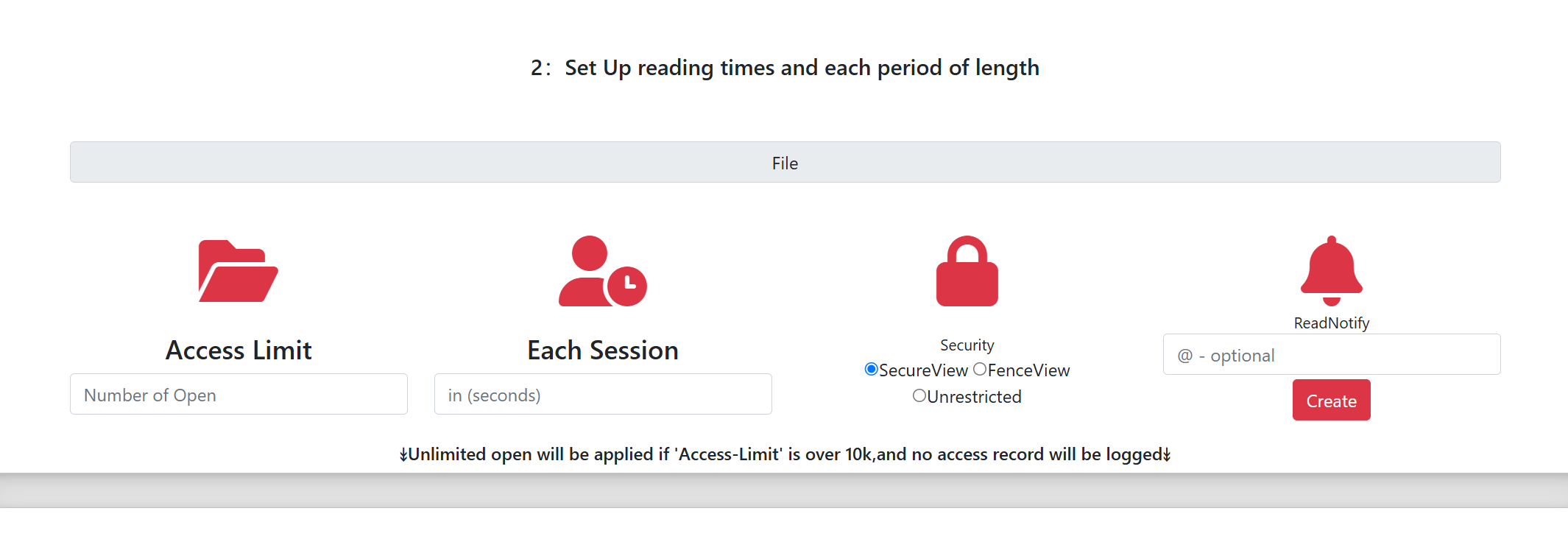
- Set Expiration Dates: Use MaiPDF to set time limits for link validity.
- Password Protection: Add password requirements for access.
- Download Restrictions: Allow view-only access without download permissions.
- IP Restrictions: Limit access to specific geographic locations.
Step 5: Track and Monitor Access
Monitor your PDF's performance and security:
- View Analytics: Track who accessed your document and when.
- Email Notifications: Receive alerts when your PDF is opened.
- Geographic Tracking: See where your document is being accessed.
- Usage Statistics: Monitor download and view counts.
Why Choose MaiPDF for PDF to URL Conversion?
- Advanced Security: Limit PDF opens, prevent unauthorized sharing
- Content Protection: Prevent downloading, printing, and copying
- Real-time Tracking: Email notifications when PDF is accessed
- Time-based Access: Set expiration dates for enhanced security
- QR Code Generation: Easy mobile access and sharing
Best Practices for PDF URL Sharing
Security Tips:
- Always use HTTPS links
- Set appropriate access permissions
- Monitor access logs regularly
- Use watermarks for sensitive content
Performance Tips:
- Optimize PDF file size before uploading
- Choose reliable hosting platforms
- Test links before sharing
- Provide alternative access methods
Frequently Asked Questions
Q: How long do PDF URLs remain active?
A: With MaiPDF, you can set custom expiration dates or keep links active indefinitely.
Q: Can I track who accessed my PDF?
A: Yes, MaiPDF provides detailed analytics including access times, locations, and user information.
Q: Is it possible to update the PDF content after sharing the URL?
A: Yes, MaiPDF allows you to update file content while maintaining the same sharing URL.