Lost Control of a Shared PDF?
Use a fast recovery workflow to regain control without breaking recipient links. Audit who opened, lock or revoke, replace the file if needed, and monitor from there.
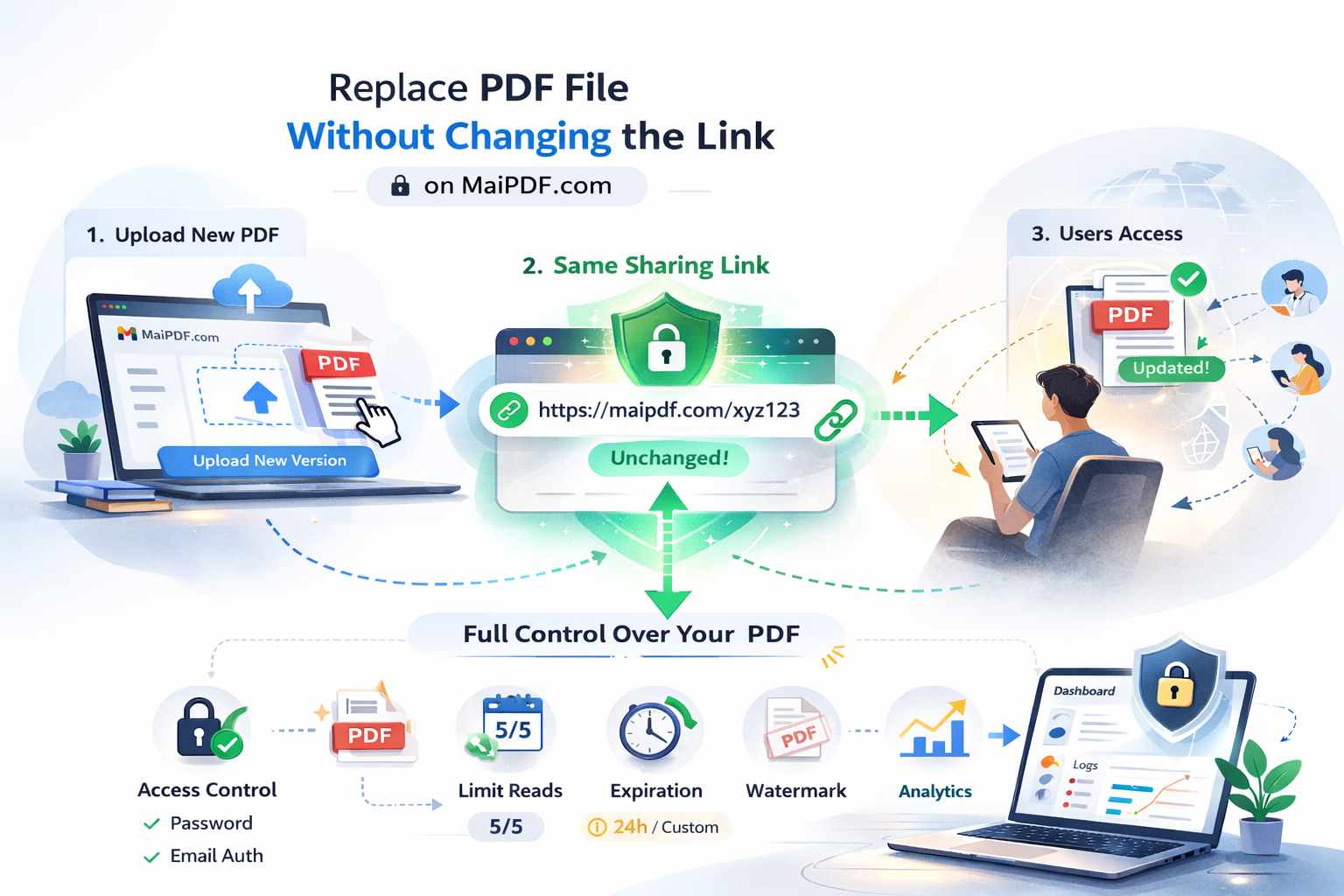
Use a fast recovery workflow to regain control without breaking recipient links. Audit who opened, lock or revoke, replace the file if needed, and monitor from there.
Article
Once a link is sent, it can be forwarded or left open. If the document was wrong, confidential, or time-sensitive, you need a way to see who already opened it, tighten or revoke access, and optionally replace the file without sending a new link. This guide walks through that recovery flow.
Recovery plan
Check Access Records with your Read Code and Modification Code. See who opened and when so you know the scope before changing anything.
Enable stricter view limits, add or require email verification, or revoke the link so it no longer opens the file.
Update the PDF using the same link. Recipients don’t need a new URL; they just open the link again to see the new file.
Watch new opens in Access Records. If something looks wrong, lock or revoke again.
Access records
Use your Read Code and Modification Code on the Access Records page to inspect open history. You can confirm whether unexpected viewers opened the file before you revoke or replace.
Replace PDF Without Changing Link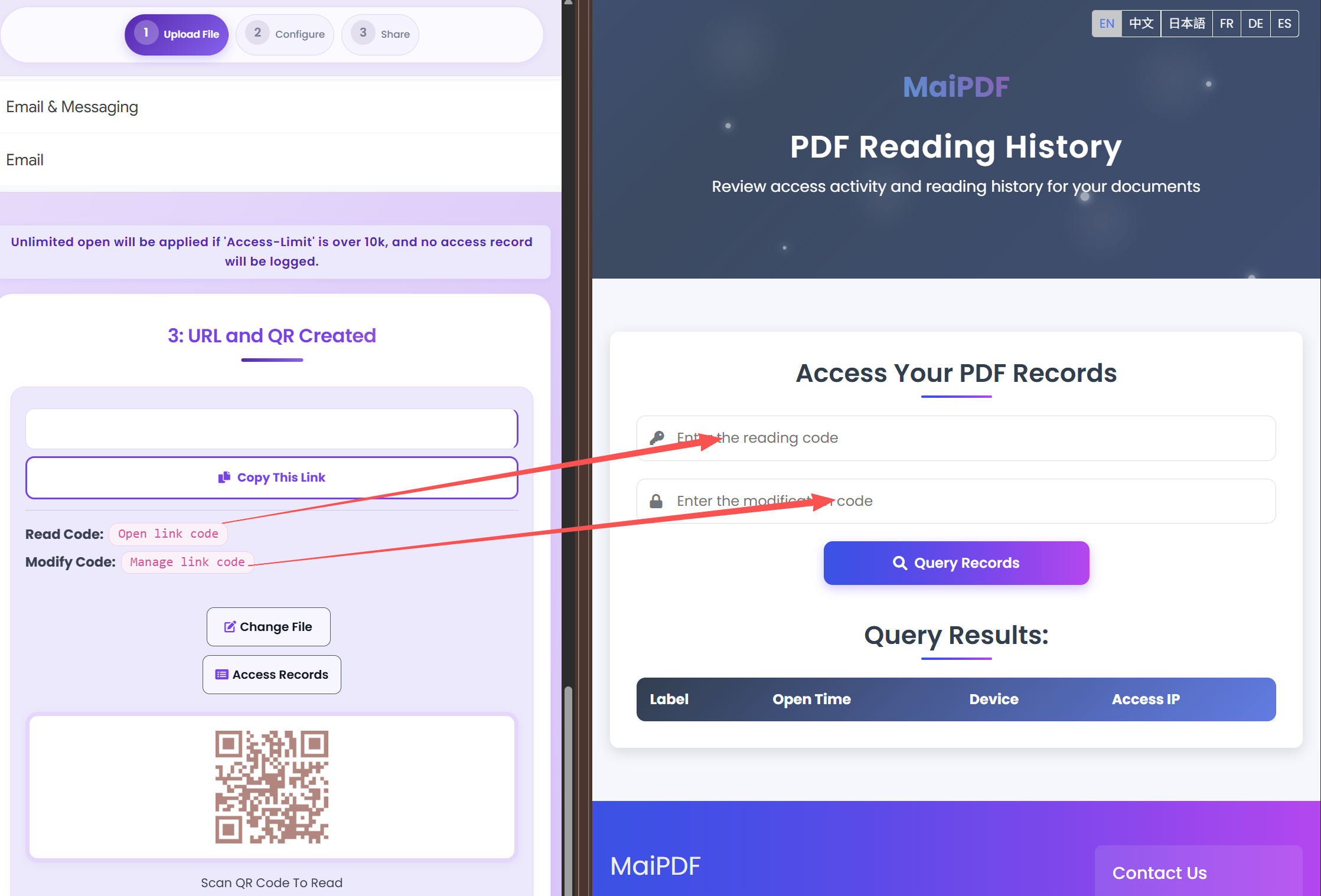
FAQ
Yes. Use Replace PDF without changing the link. The URL stays the same; only the file content updates. Existing recipients don’t need a new link.
Open Access Records and enter your Read Code (and Modification Code if used). You’ll see when and how often the link was opened so you can decide whether to revoke or tighten limits.
Read more
Same URL, new file.
Access records and codes.
Expiry and revoke.
Full control and tracking.
Updated MaiPDF protection path
SendPDFOnline pages now describe MaiPDF as a two-level product family: Online Cloud Sharing creates quick browser links and QR codes, while the MaiPDF App creates protected .maipdf packages for sensitive PDFs that need App DRM controls.
Upload a PDF, share a browser link or QR code, and keep read code / modify code management.
Package the PDF in the MaiPDF App with local encryption, license rules, expiry, open limits, and revoke control.
Use protected viewer, device binding, screenshot-aware controls, watermark trace, and license management where supported.
No web page can fully stop screenshots. MaiPDF App DRM is positioned as the stronger path: reduce casual copying, bind access to identity/devices, revoke licenses, and trace leaks with visible watermark information.
Free. No sign-up required.
Recover Control