Replace a PDF Without Changing the Link
Same URL, new file. You swap the PDF in the background; recipients keep using the original link and see the updated version. No re-sending.
Link stays Settings follow MaiPDF only (not Maiimg)
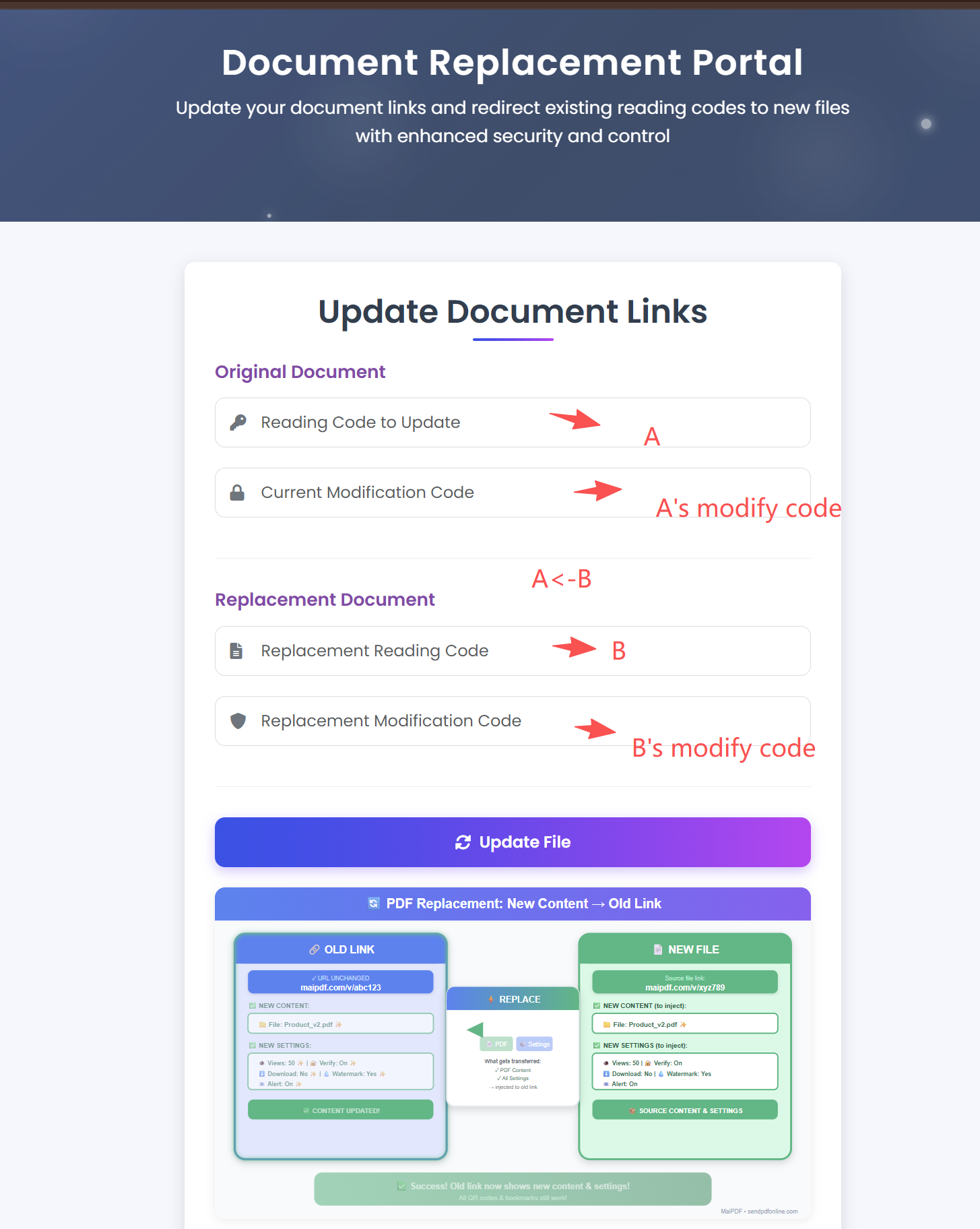
Same URL, new file. You swap the PDF in the background; recipients keep using the original link and see the updated version. No re-sending.
Link stays Settings follow MaiPDF only (not Maiimg)
Article
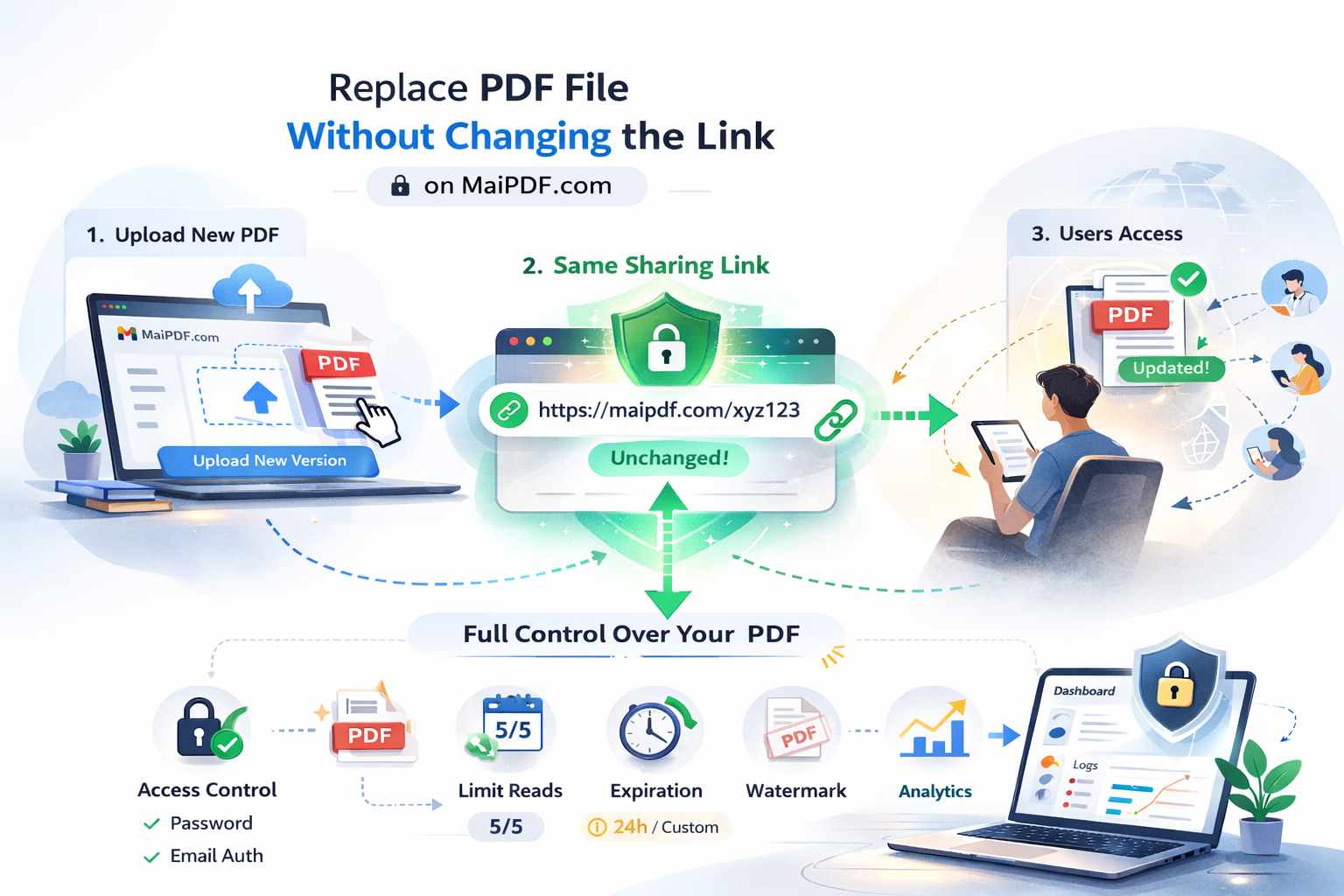
You shared a link; then you find an error. Normally you’d upload again, get a new link, resend — and the client asks which link to use. With MaiPDF: the link stays. You replace the file in the portal. Everyone who opens the same link now sees the new version.
How It Works
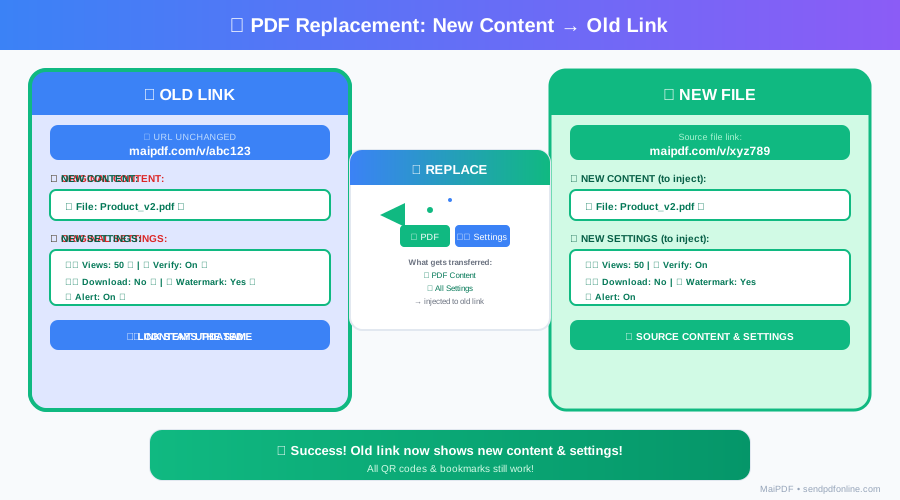
The reading code (and URL) stays. You inject the new PDF and its settings into that code.
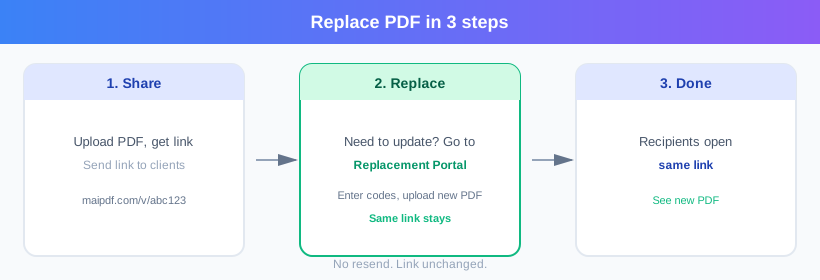
3 steps
Why Replace
No resend. QR and bookmarks still work.
View limits, verification, watermarks come with the new file.
Access log and analytics stay on the same reading code.
Next open = new content. No delay.
Use Cases
Steps
Use the replacement portal:
Reading code + control (modify) code of the link you want to update.
Reading code + control code of the new PDF (upload it first if needed).
Old link now serves the new file and settings. QR and bookmarks unchanged.
PDF content, view/expiry limits, verification, download/watermark/alert settings.
Reading code, share URL, QR code, access history.
Logged in? Replace from the control panel
If you have a MaiPDF account, after you upload files you can replace them directly in the control panel — no need to open the replacement portal. Select the link to update and swap in the new file from your reading codes list.
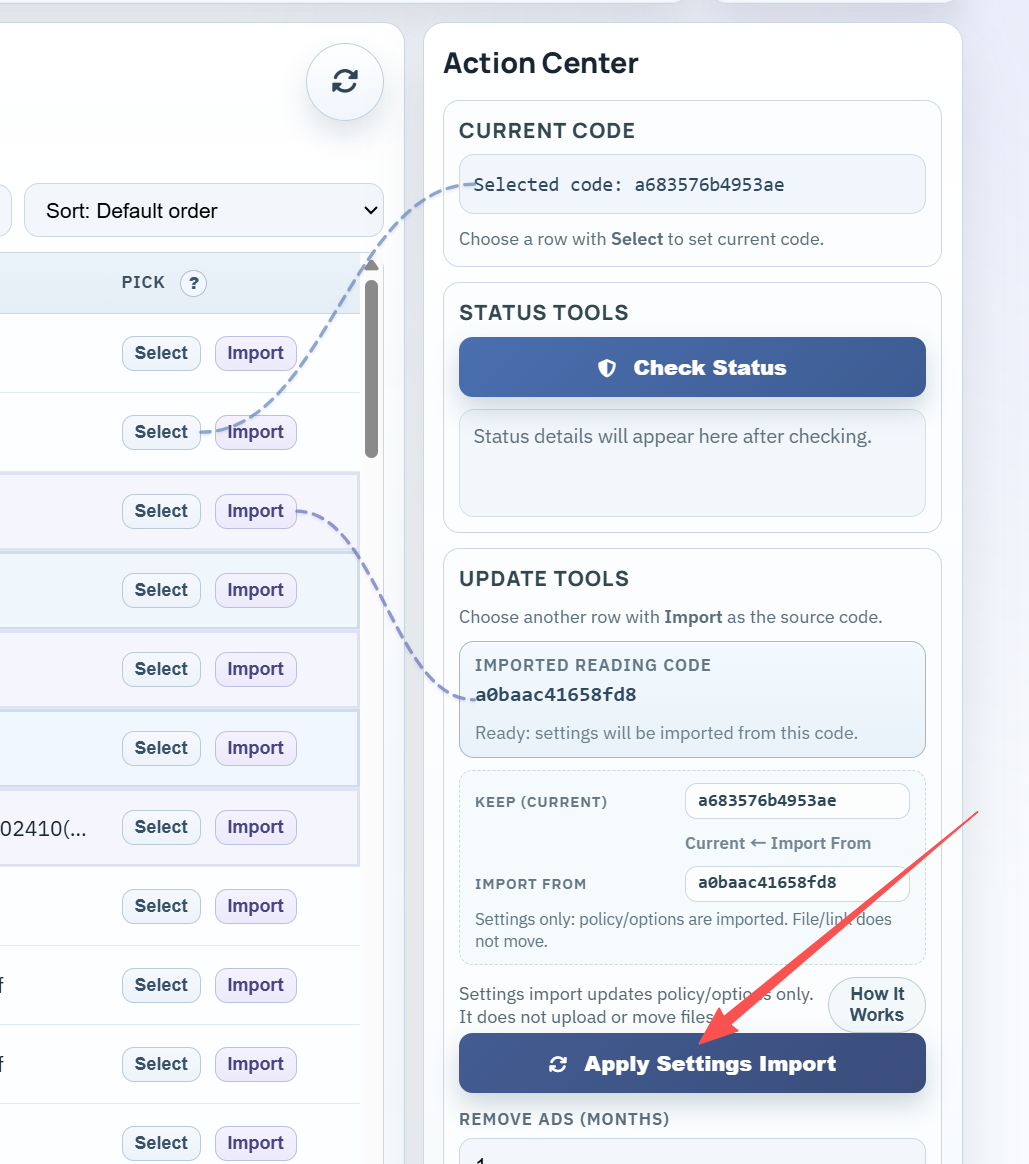
Control panel: easy swap and settings import for your links.
Tips
Save your control codes (e.g. in a password manager). Test the new PDF in a separate link before replacing. MaiPDF only — Maiimg has no replace feature.
Execution
Playbook
| Scenario | Recommended controls | Follow-up action |
|---|---|---|
| Sales proposal | Password + 7-day expiry + watermark | Review open timeline before pricing follow-up |
| Investor update | Verified viewer + no-download + revoke switch | Disable access after board cycle ends |
| Training materials | QR sharing + view limits + printable allowed | Track completion and refresh old versions |
FAQ
No. They just see the new content when they open the link. Tell them yourself if it matters.
Yes. Use the portal again and swap back (you need the old file’s codes).
Codes are shown once after upload. If lost, you can’t replace that link — save them securely.
No. Replace is MaiPDF only.
No. Replace as often as you want, as long as you have the codes.
Read More
Secure sharing with control.
Store locally, control remotely.
Best practices.
Same link, new file. No resend, no confusion.
Updated MaiPDF protection path
SendPDFOnline pages now describe MaiPDF as a two-level product family: Online Cloud Sharing creates quick browser links and QR codes, while the MaiPDF App creates protected .maipdf packages for sensitive PDFs that need App DRM controls.
Upload a PDF, share a browser link or QR code, and keep read code / modify code management.
Package the PDF in the MaiPDF App with local encryption, license rules, expiry, open limits, and revoke control.
Use protected viewer, device binding, screenshot-aware controls, watermark trace, and license management where supported.
No web page can fully stop screenshots. MaiPDF App DRM is positioned as the stronger path: reduce casual copying, bind access to identity/devices, revoke licenses, and trace leaks with visible watermark information.