How to Convert PDF to URL
Turn any PDF file into a shareable URL in seconds. Get a permanent link and QR code with built-in security, analytics, and access control.
6 min read · March 23, 2026 · Sharing
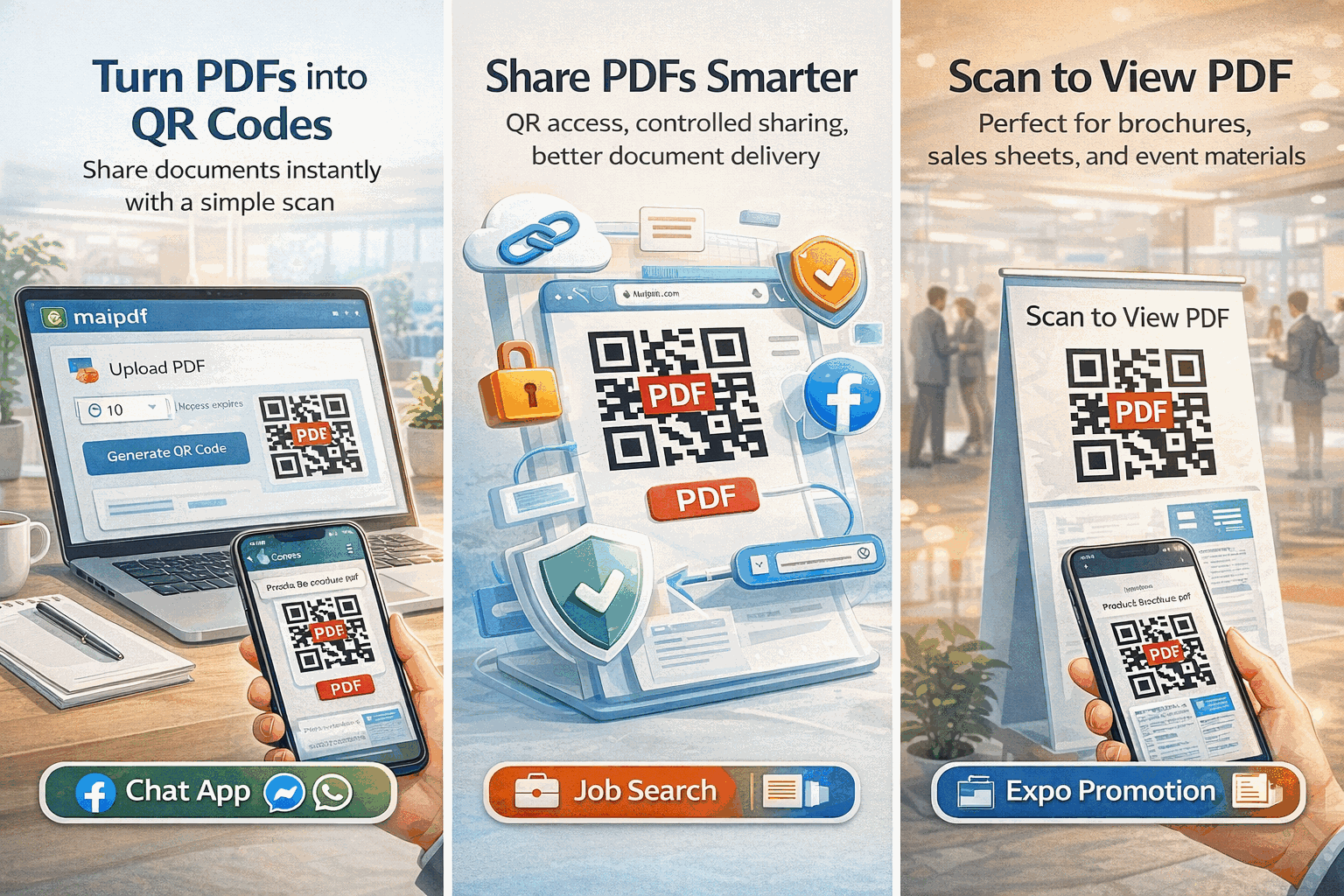
Turn any PDF file into a shareable URL in seconds. Get a permanent link and QR code with built-in security, analytics, and access control.
6 min read · March 23, 2026 · Sharing
How It Works
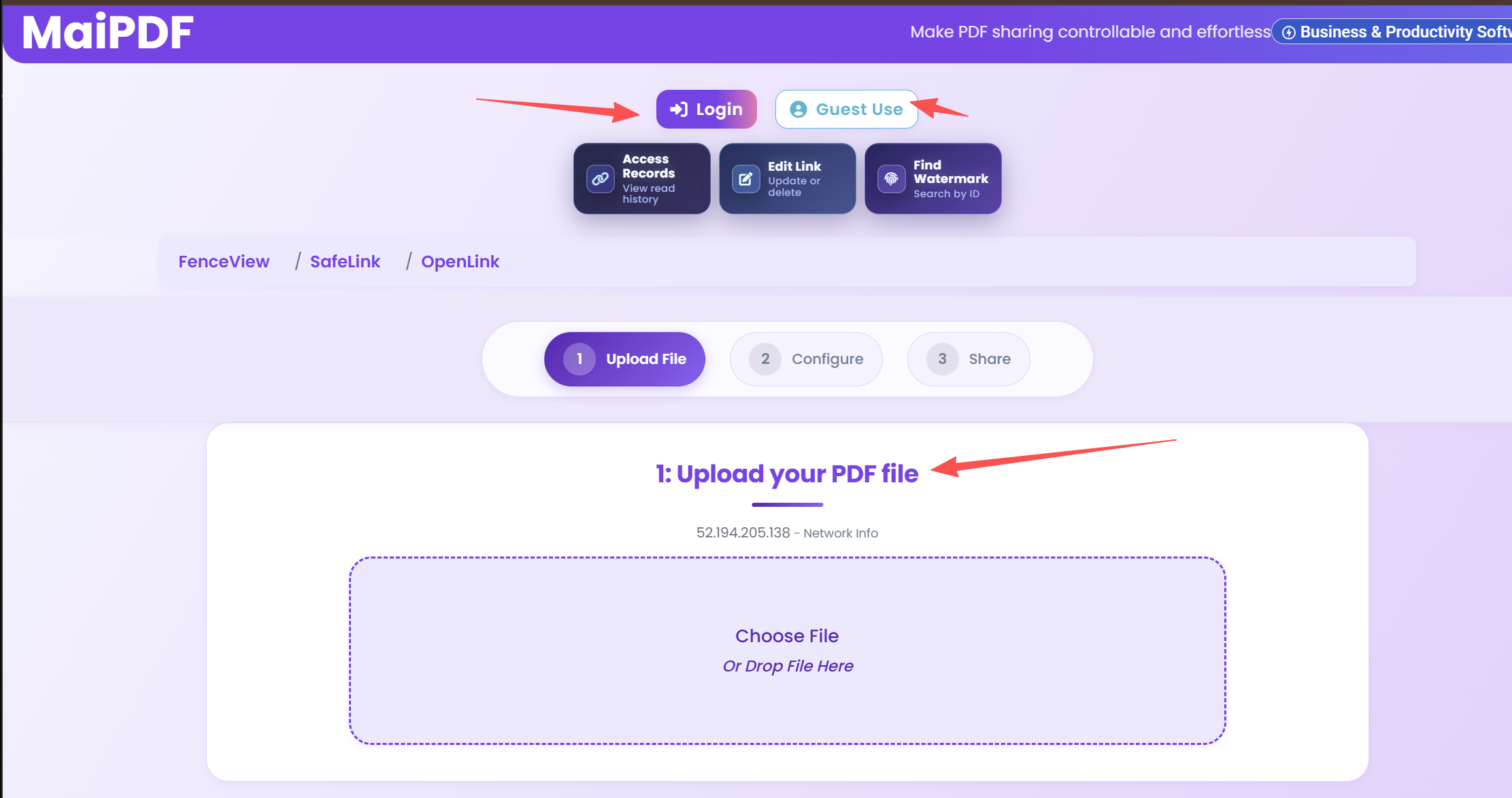
Open MaiPDF and drag any PDF up to 100 MB onto the page. No sign-up needed for instant URL generation.
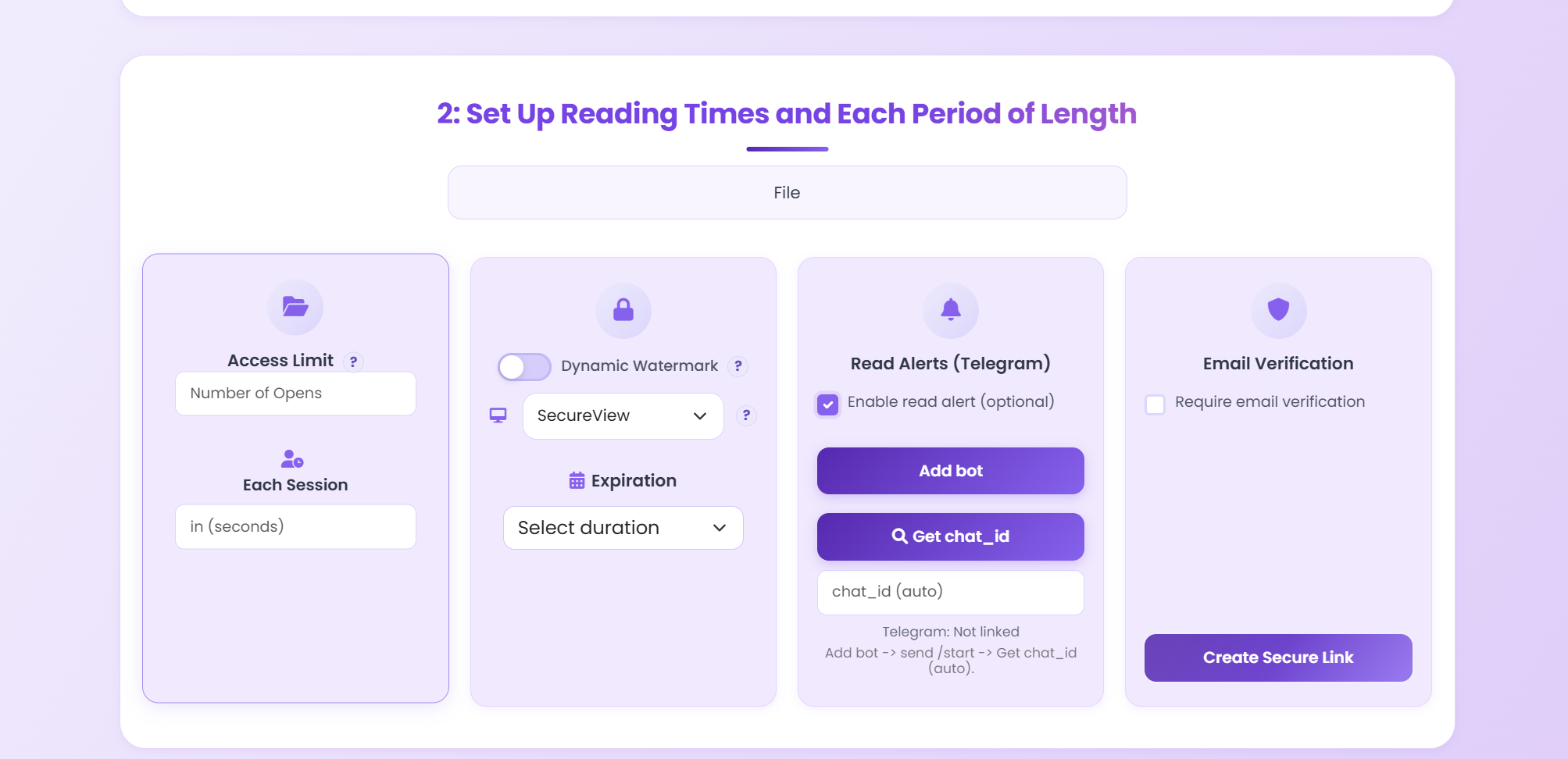
Optionally add a password, expiration date, view limit, dynamic watermark, or enable Telegram open alerts.
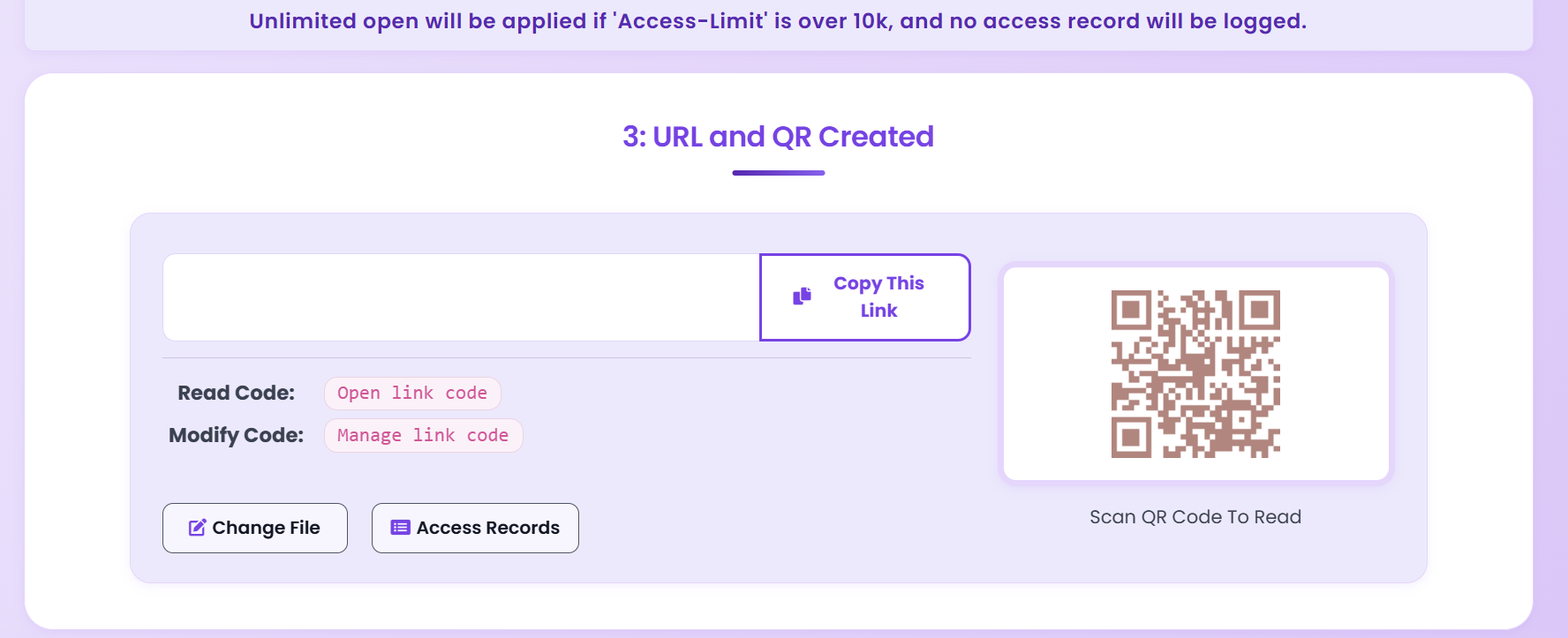
Copy the permanent URL or download the QR code. Share via email, chat, social media, or print materials.
Key Features
Upload your PDF and the URL is generated instantly — no manual steps, no processing delays.
Your link stays active as long as you want. Set an expiration or let it live indefinitely — you're in control.
Every URL includes an auto-generated QR code, perfect for business cards, flyers, posters, and presentations.
Add passwords, view limits, expiration dates, and disable downloads to protect sensitive content.
Track who opened your URL, when, from what device, and which location — with full audit history.
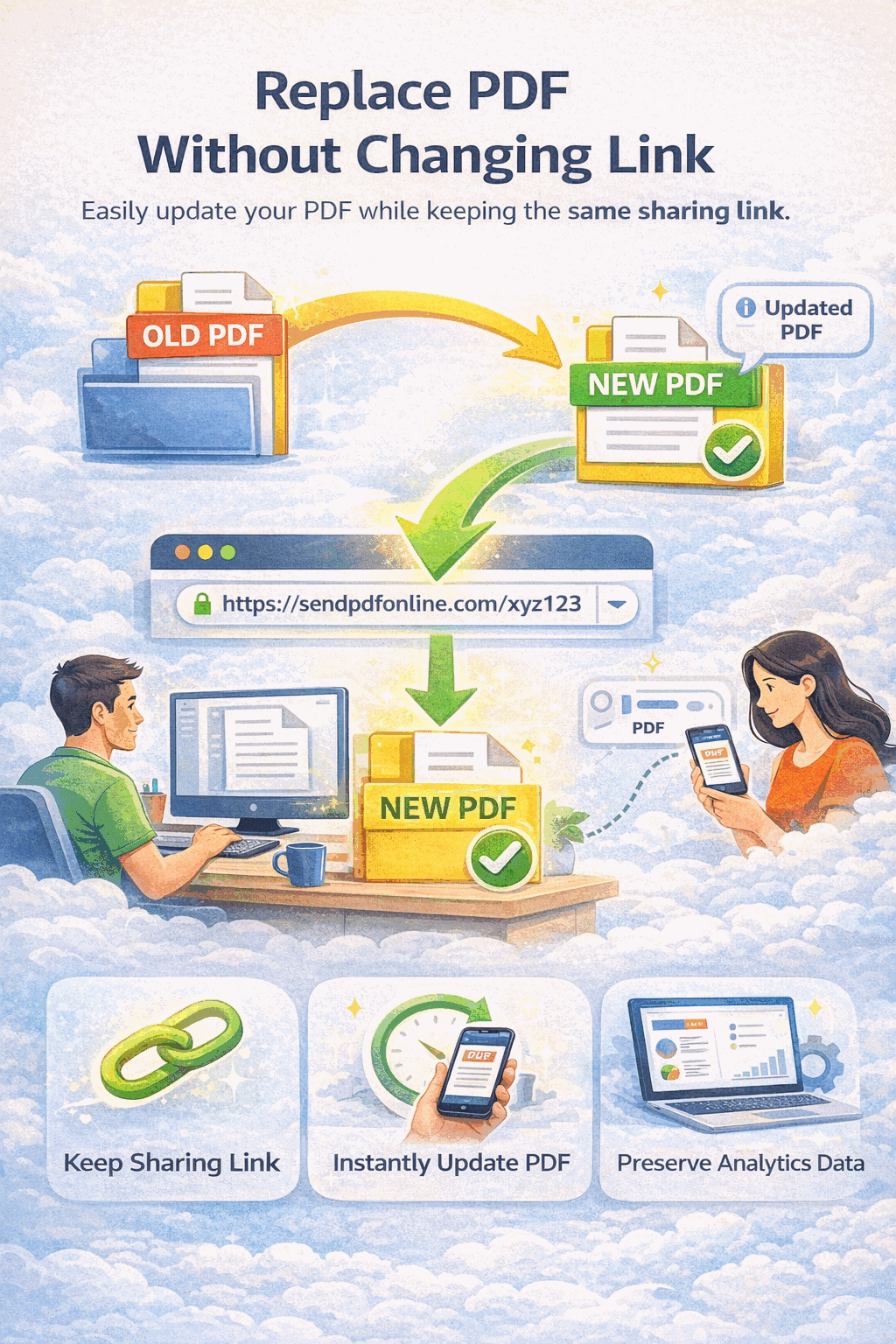
Update the PDF behind the link anytime. Recipients always get the latest version without a new URL.
The URL opens in a responsive viewer that works on every phone, tablet, and desktop browser.
Generate a shareable URL without creating an account. Sign up later to unlock analytics and management.
Why MaiPDF
Services like Google Drive or Dropbox give you a link, but they hand out a downloadable file with no view limits, no watermarks, and limited analytics. MaiPDF turns your PDF into a controlled viewing experience.
Comparison
Google Drive and Dropbox columns reflect typical free-tier features. Paid plans may add some controls but generally lack per-viewer watermarks and view-count limits.
FAQ
Related Reading
Create secure shareable links with passwords, view limits, and real-time analytics.
Update the file behind your URL while keeping the same link and QR code.
Share PDFs without downloads using expiration, view limits, and watermarks.
Upload any PDF, get a permanent shareable link and QR code in seconds. Free on MaiPDF — no sign-up required.
Updated MaiPDF protection path
SendPDFOnline pages now describe MaiPDF as a two-level product family: Online Cloud Sharing creates quick browser links and QR codes, while the MaiPDF App creates protected .maipdf packages for sensitive PDFs that need App DRM controls.
Upload a PDF, share a browser link or QR code, and keep read code / modify code management.
Package the PDF in the MaiPDF App with local encryption, license rules, expiry, open limits, and revoke control.
Use protected viewer, device binding, screenshot-aware controls, watermark trace, and license management where supported.
No web page can fully stop screenshots. MaiPDF App DRM is positioned as the stronger path: reduce casual copying, bind access to identity/devices, revoke licenses, and trace leaks with visible watermark information.