Complete Guide

PDF Watermark Online: How to Add Watermarks to Your PDFs

Everything you need to know about watermarking PDF documents — from simple text watermarks to dynamic viewer-tracking watermarks that deter unauthorized sharing.

13 min read • Updated February 2026

Table of Contents

Watermarks have been used for centuries to protect documents — from currency bills to government papers. In the digital age, PDF watermarks serve a similar purpose: they identify ownership, deter unauthorized copying, and trace document leaks.

This guide covers everything from basic text watermarks to advanced dynamic watermarks that change based on who's viewing the document.
1. What Is a PDF Watermark?

A PDF watermark is a visible text or image overlay that appears on the pages of a PDF document. Unlike headers or footers that sit at the edges of a page, watermarks are typically placed diagonally across the center of the page, behind the main content.

Common Watermark Text

Purpose of Watermarks

  1. Ownership assertion — Clearly identify who created or owns the document
  2. Unauthorized copy deterrent — Make it impractical to use the document without permission
  3. Document status indication — Show whether a document is a draft, final, or copy
  4. Leak tracing — Dynamic watermarks can identify who leaked a document
  5. Legal protection — Establish evidence of original ownership in disputes

2. Types of PDF Watermarks

Text Watermarkmark

The most common type. A text string (like "CONFIDENTIAL" or "DRAFT") is displayed diagonally across each page in a semi-transparent font.

Best for: Document status (draft/final/copy), confidentiality marking, branding

Pros: Simple, universally understood, low visual impact

Cons: Can be removed with PDF editing tools, same for all viewers

Image Watermark

A logo or image is placed on each page as a semi-transparent overlay. Often used for company branding.

Best for: Company branding, professional documents, portfolios

Pros: Strong visual branding, harder to remove cleanly

Cons: Can obscure content if poorly placed, requires a suitable logo image

QR Code Watermark

A QR code is embedded as a watermark that links back to verification or tracking information.

Best for: Document authentication, certificates, verification chains

Pros: Machine-readable, verifiable, dual-purpose (watermark + tracking)

Cons: More visually intrusive than text watermarks

Why Dynamic Watermarks Are Superior: Traditional watermarks are the same for every viewer. If a document leaks, you can't tell who leaked it. Dynamic watermarks solve this by making each viewer's copy uniquely identifiable. If a screenshot surfaces online, the watermark reveals exactly who captured it.

3. When to Use Watermarks

Legal Documents

Mark drafts as "DRAFT" to prevent premature reliance on unfinalized terms. Use dynamic watermarks for settlement agreements shared with opposing counsel.

Financial Reports

"CONFIDENTIAL" watermarks on investor updates, quarterly reports, and financial projections. Dynamic watermarks trace who leaked sensitive financial data.

Educational Materials

Prevent students from distributing paid course materials. Watermark exam papers with student identifiers.

Publishing Previews

Mark advance review copies with "UNCORRECTED PROOF" and reviewer identifiers to prevent pre-publication leaks.

Corporate Documents

Brand internal documents with company logo watermarks. Mark HR documents as "CONFIDENTIAL — FOR INTERNAL USE ONLY."

Design Portfolios

Protect creative work shared with potential clients. Logo watermarks prevent unauthorized use of design samples.

4. How to Add a Watermark to a PDF Online

There are two approaches to watermarking PDFs: modifying the PDF file itself, or applying watermarks when the document is viewed through a link.

Approach A: File-Level Watermark

Tools like Adobe Acrobat modify the PDF file to embed a watermark. This means the watermark is baked into the file.

Approach B: View-Level Watermark (via MaiPDF)

MaiPDF applies the watermark when the document is displayed through the shared link. The original PDF is not modified.

Step-by-Step: Add a Watermark with MaiPDF

1
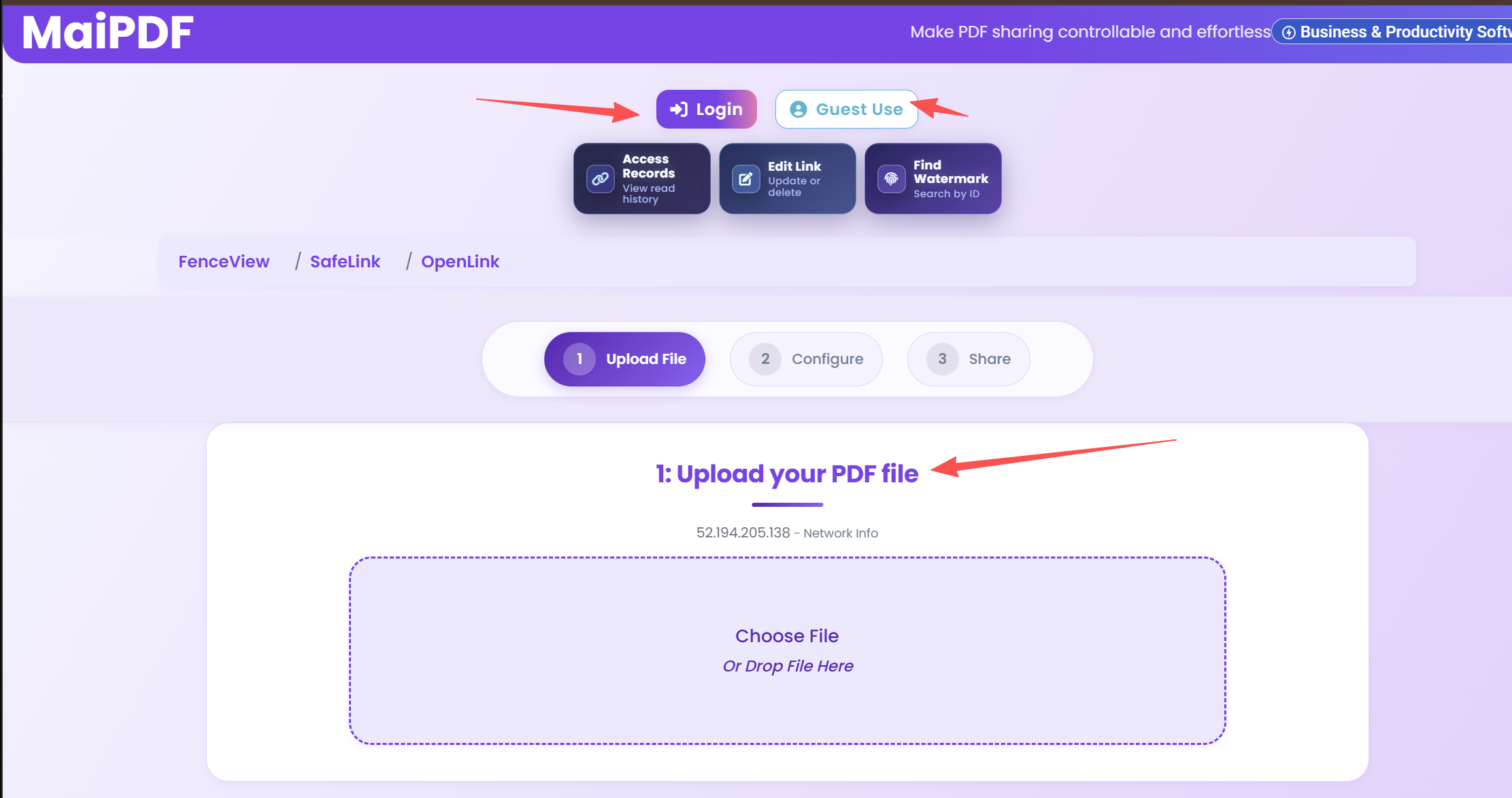
Upload Your PDF

Go to maipdf.com and upload your document.

Upload your PDF to MaiPDF for watermarking
2
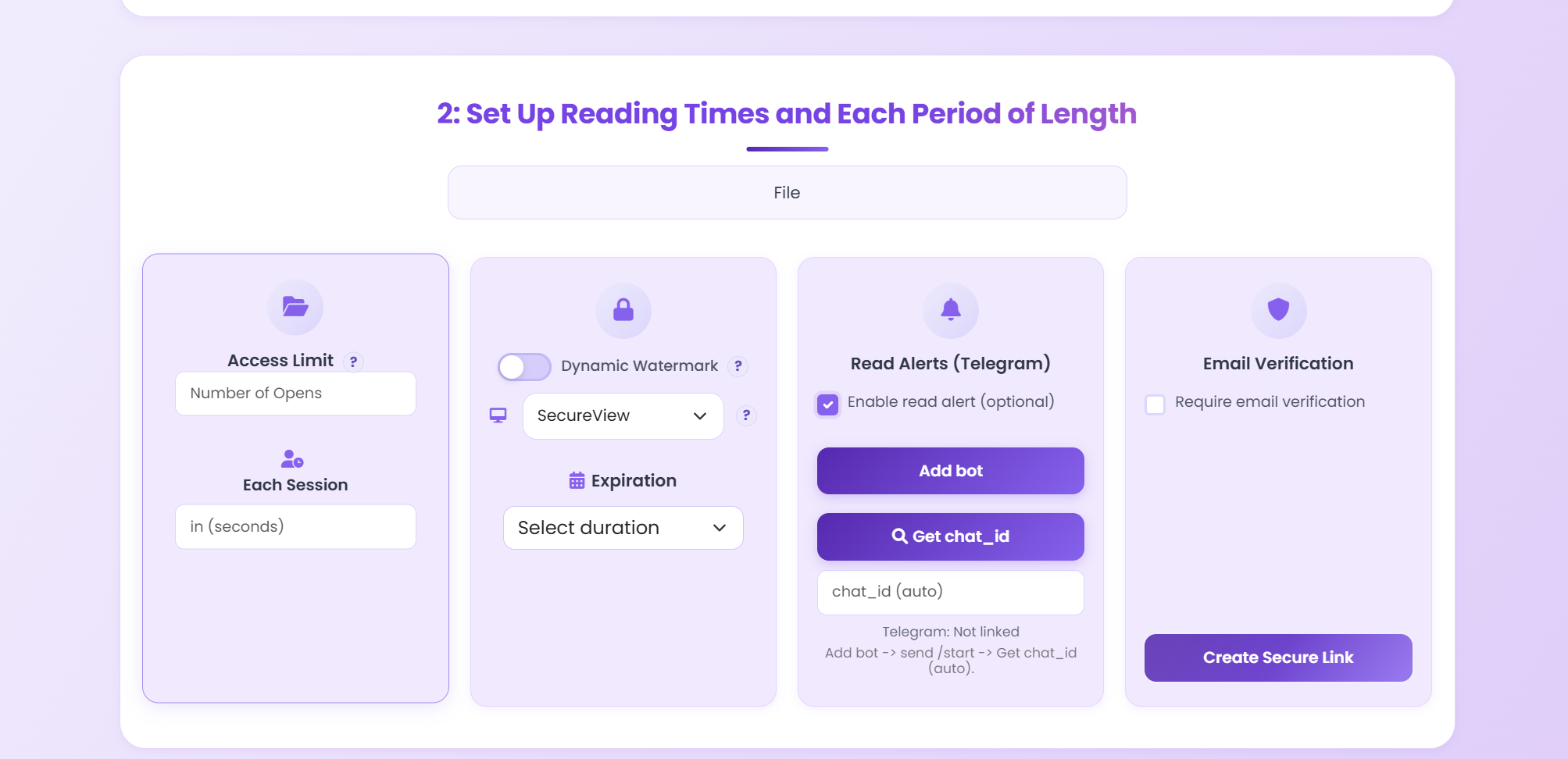
Enable Watermark in Security Settings

In the security configuration panel, enable the watermark option. Choose between text watermark or dynamic watermark.

Enable watermark in MaiPDF security settings
3
Customize Your Watermark

Options include:

  • Custom text (e.g., "CONFIDENTIAL", your company name)
  • Dynamic fields (IP address, timestamp, viewer identifier)
  • Position and opacity settings
4
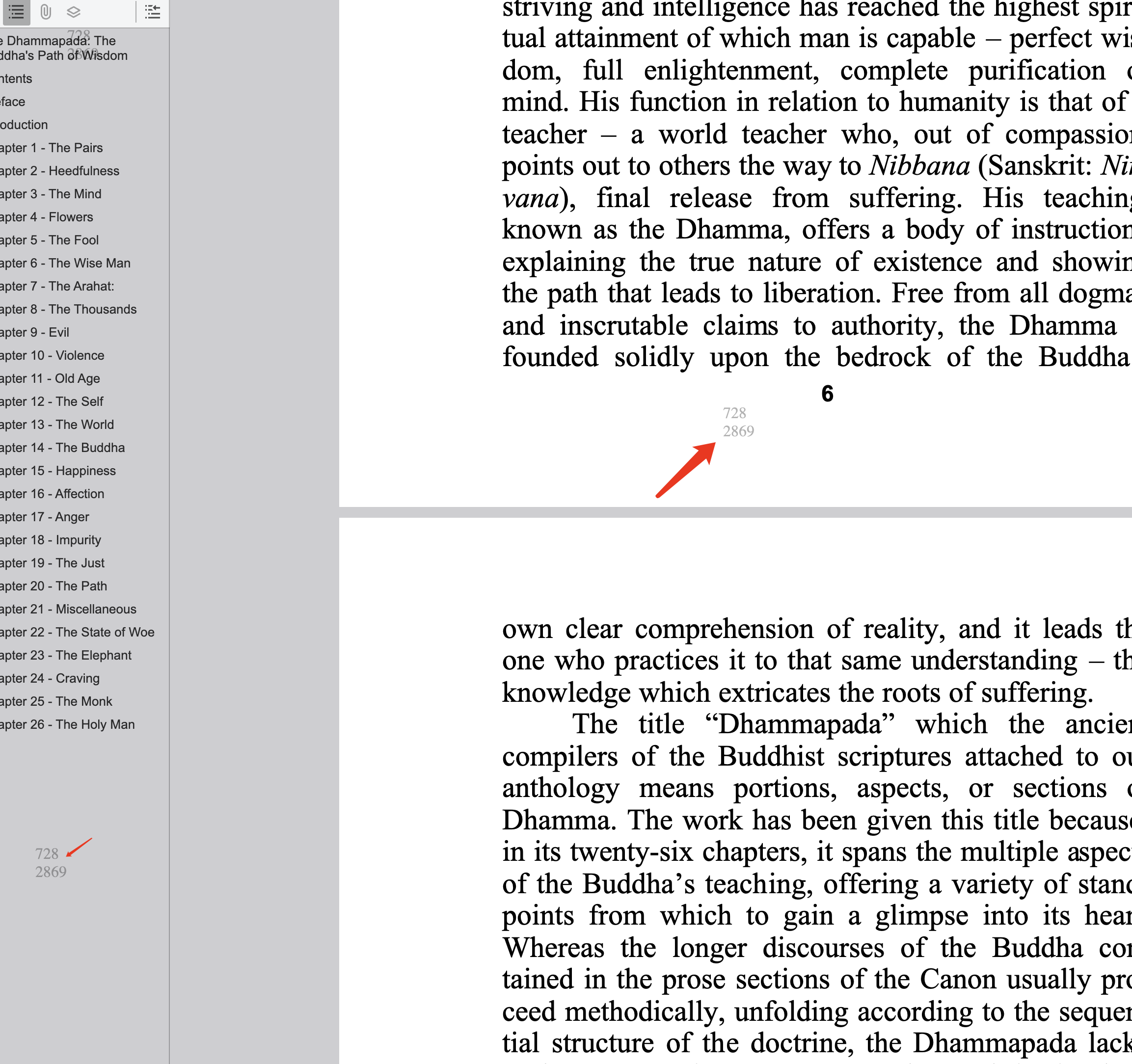
Generate & Share Your Link

Get your shareable link or QR code. When anyone opens the link, they'll see the document with your watermark applied.

Your watermarked PDF link is ready to share

5. Dynamic Watermarks: The Next Level

Dynamic watermarks are the most powerful watermarking technology available today. Unlike static text that says "CONFIDENTIAL" for everyone, dynamic watermarks display viewer-specific information.

How Dynamic Watermarks Work

  1. You upload a PDF and enable dynamic watermarks
  2. You share the link with recipients
  3. When Person A views the document, the watermark shows "Viewed by [Person A's IP] at [timestamp]"
  4. When Person B views the same link, the watermark shows "Viewed by [Person B's IP] at [timestamp]"
  5. If Person A screenshots the document and shares the screenshot, you can trace the leak back to Person A

What Dynamic Watermarks Can Include

Dynamic Watermarks vs Static Watermarks

Feature Static Watermark Dynamic Watermark
Same for all viewers? Yes — everyone sees identical text No — each viewer sees unique info
Leak tracing? ✗ Impossible ✓ Traces to specific viewer
Removable? Yes — with PDF editors No — applied at view time, not in file
Deterrent strength Low — no personal accountability High — personal info creates accountability
Requires? PDF editing software Link-based sharing (MaiPDF)
Maximum Protection: Combine dynamic watermarks with view count limits and expiration dates for the strongest possible document protection. Even if someone screenshots the watermarked document, the leak is traceable, and the original link expires, preventing further access.

6. Watermark Best Practices

Design Tips

Security Tips

Legal Considerations

7. Watermark Tools Compared

Feature MaiPDF Adobe Acrobat Free Online Tools
Text watermarks
Dynamic watermarks
Combined with tracking
View count limits
Link expiration
Free to use ✗ (subscription)
Original file unchanged ✗ (modifies PDF) ✗ (modifies PDF)
No installation needed

8. Frequently Asked Questions

How do I add a watermark to a PDF online?

Upload your PDF to MaiPDF, enable the watermark option in security settings, customize the watermark text, and generate your shareable link. The watermark will appear on the document when viewed through the link. No software installation needed.

What is a dynamic watermark on a PDF?

A dynamic watermark automatically includes viewer-specific information such as IP address, timestamp, or a custom identifier. Unlike static watermarks that show the same text for everyone, dynamic watermarks are unique to each viewer, making it possible to trace the source of any unauthorized screenshots or leaks.

Can I add a watermark to a PDF for free?

Yes. MaiPDF allows you to add watermarks to shared PDFs for free. Upload your document, enable the watermark feature, and share the link. The watermark is applied when the document is viewed, so your original PDF file is not modified.

Can recipients remove the watermark?

When using MaiPDF's view-level watermarks, the watermark is applied by the viewer — not embedded in the PDF file. This means there's no watermark in the file to remove. The viewer always displays it. Traditional file-level watermarks (from Adobe Acrobat, etc.) can potentially be removed with PDF editing tools.

Do watermarks affect PDF quality?

No. Watermarks are overlaid on the document view and do not affect the quality, resolution, or file size of the original PDF. The text beneath the watermark remains fully readable when the watermark opacity is set to 20-40%.

Can I use watermarks with other security features?

Yes. Watermarks work best when combined with other protections: view count limits, expiration dates, access controls, and view tracking. This layered approach provides comprehensive document security.

Add Dynamic Watermarks to Your PDFs

Upload a PDF, enable watermarks, and share a secure link — all for free.

Try MaiPDF Free
Back to Articles Home Try MaiPDF